- Joint audio-video generation — no need to generate video and audio separately and try to sync them
- Multiple generation modes — text-to-video, image-to-video, audio-conditioned video, and keyframe interpolation
- Fast inference — the distilled pipeline generates in just 8 denoising steps
- Open source — full model weights available on HuggingFace, trainable with LoRA in under an hour
Find and rent your GPU
- Setup your Vast account and add credit: Review the quickstart guide if you do not have an account with credits loaded.
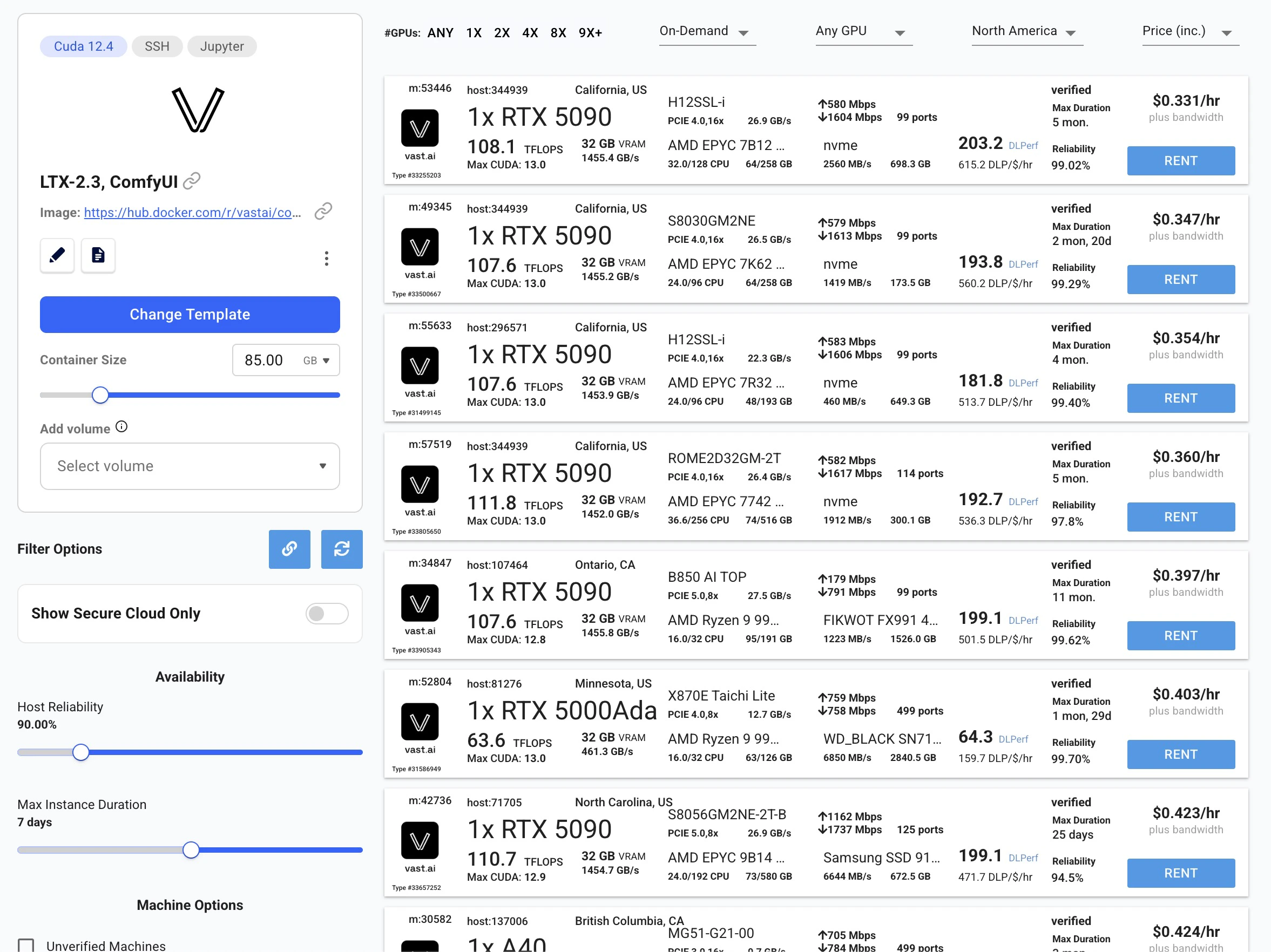
- Deploy the LTX-2.3 template: Go to the LTX-2.3 model page and click Deploy Now. This takes you to the Vast console with the LTX-2.3 ComfyUI template pre-selected.
- Select a GPU: Choose an instance from the list and click Rent.
Wait for provisioning
After renting, the instance automatically downloads all required model weights. You’ll see a loading screen while models download. On a fast connection this takes just a few minutes. Once complete, the instance status shows a green Running indicator.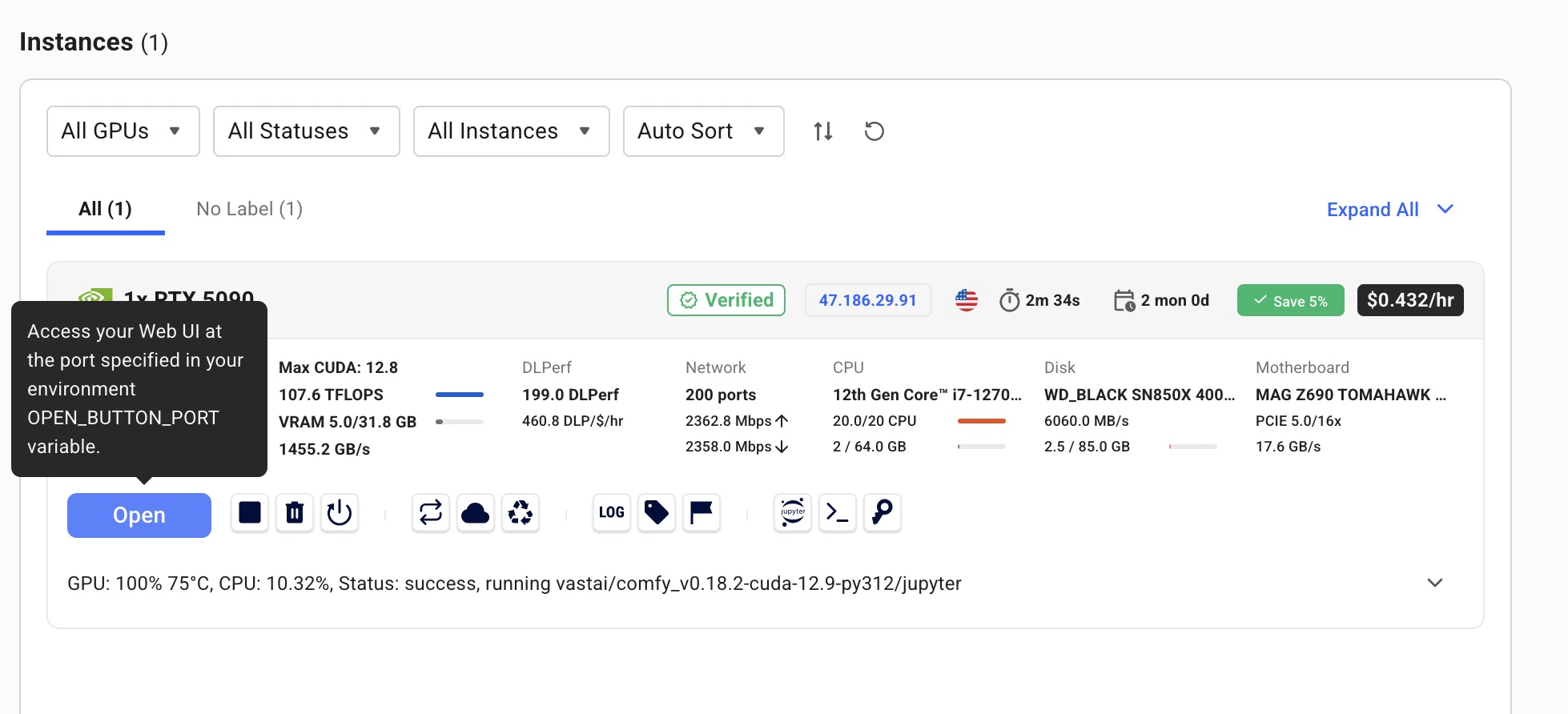
Open ComfyUI
Click the Open button on your instance to launch the Instance Portal. Click Launch Application under ComfyUI to open the visual workflow editor.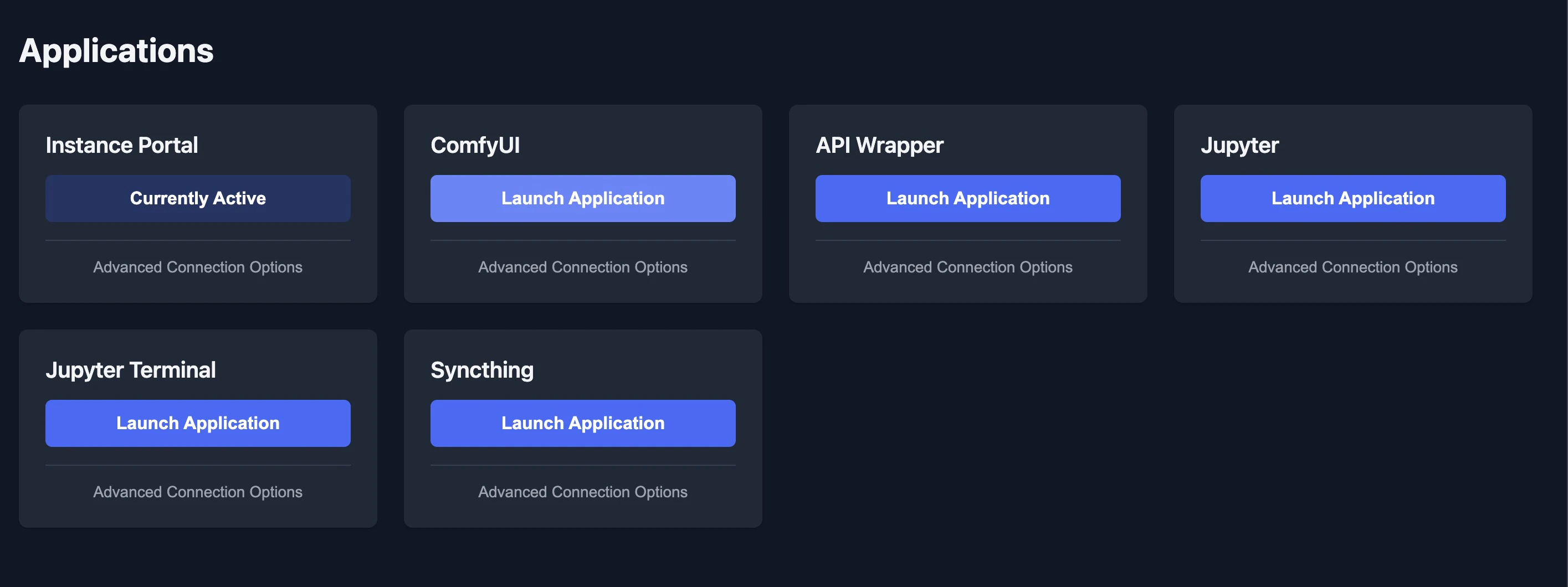
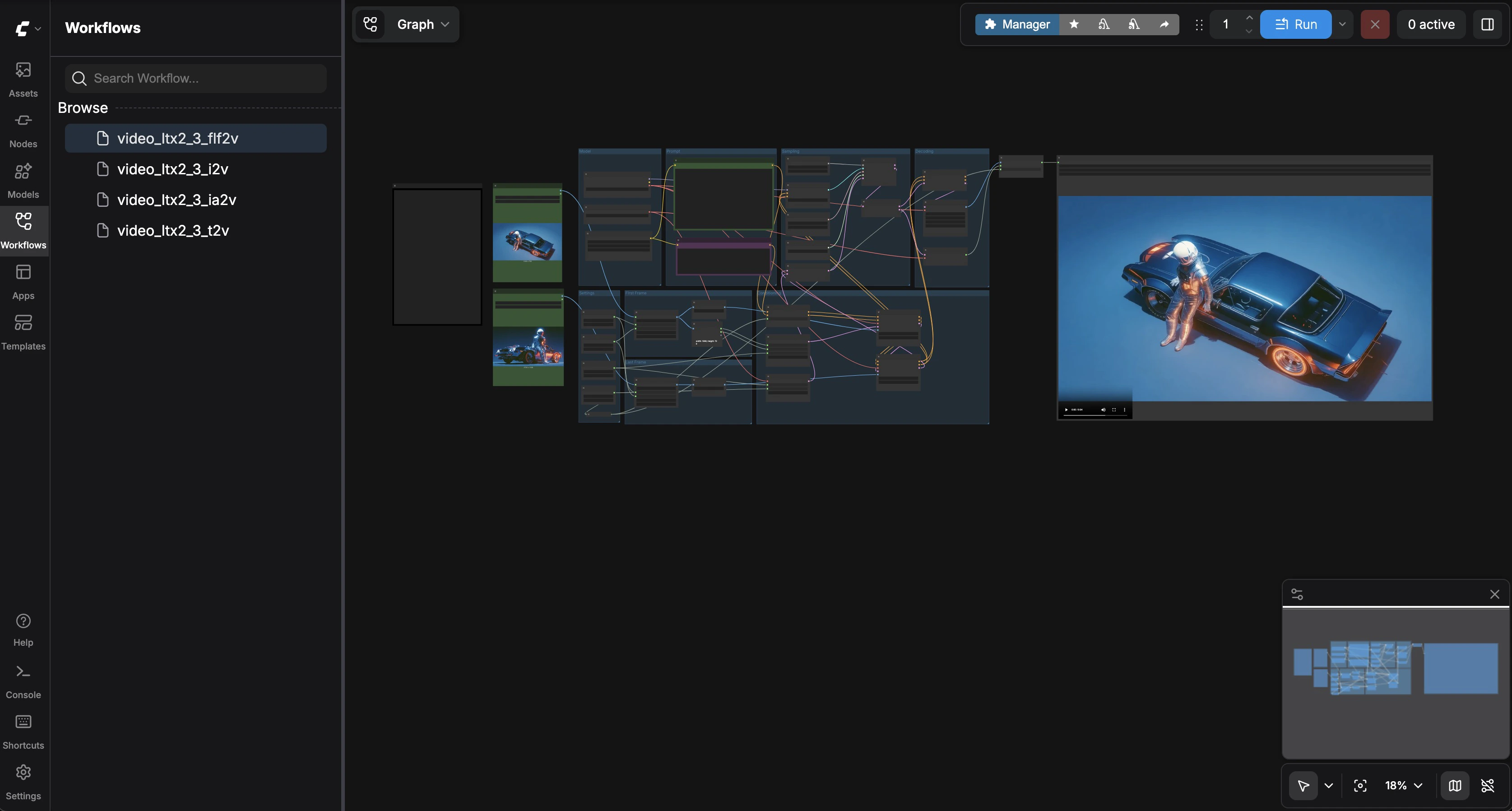
| Workflow | Description |
|---|---|
video_ltx2_3_t2v | Text-to-Video |
video_ltx2_3_i2v | Image-to-Video |
video_ltx2_3_ia2v | Image + Audio-to-Video |
video_ltx2_3_flf2v | First & Last Frame Interpolation |
Text-to-Video
Select video_ltx2_3_t2v from the sidebar. Enter a descriptive prompt in the Video Generation node — describe camera angles, lighting, and motion cinematically. Adjust width, height, and frame count if desired (defaults: 1280x720, 121 frames, 25 fps). Click Run.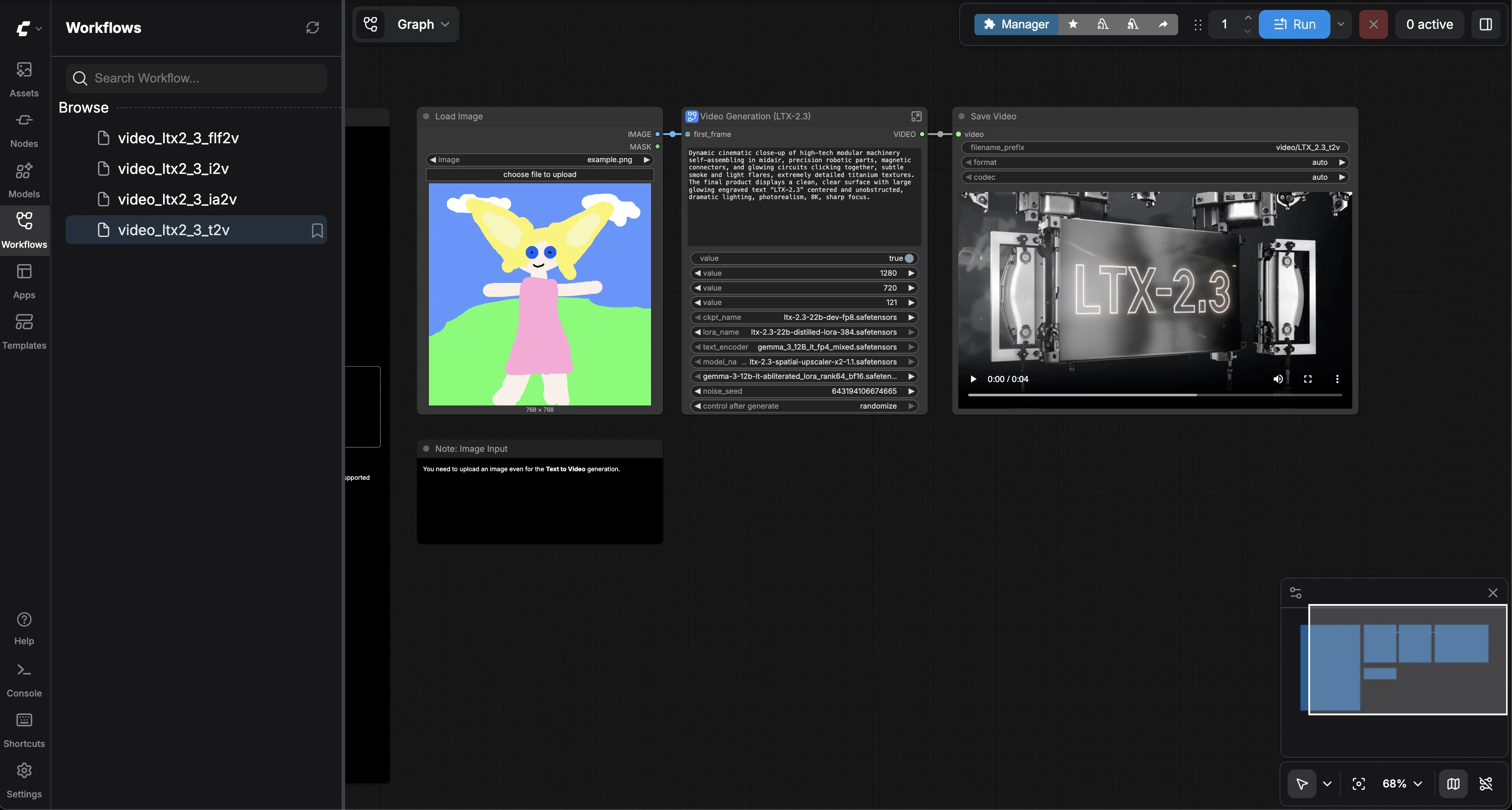
Image-to-Video
Select video_ltx2_3_i2v. Upload a reference image in the Load Image node (a sample Egyptian queen image is included). Enter a prompt describing how the image should come to life. Click Run. The model uses your image as the first frame and generates consistent motion.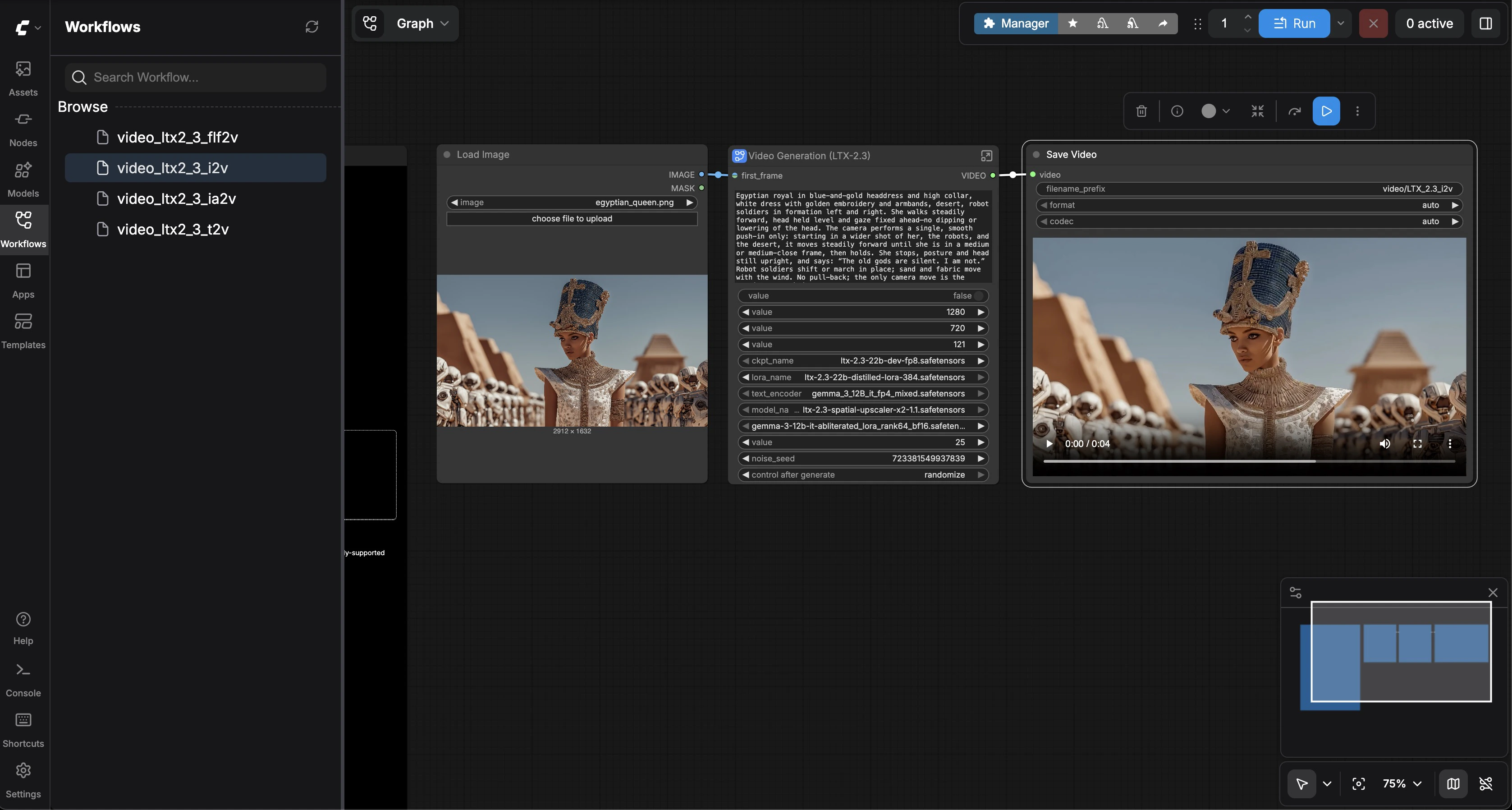
Image + Audio-to-Video
Select video_ltx2_3_ia2v. Upload a reference image and an audio file (a sample MP3 is included). Enter a prompt describing the scene. Click Run. The model generates video synchronized to the audio — lip movements match dialogue, and scene energy follows the audio’s rhythm.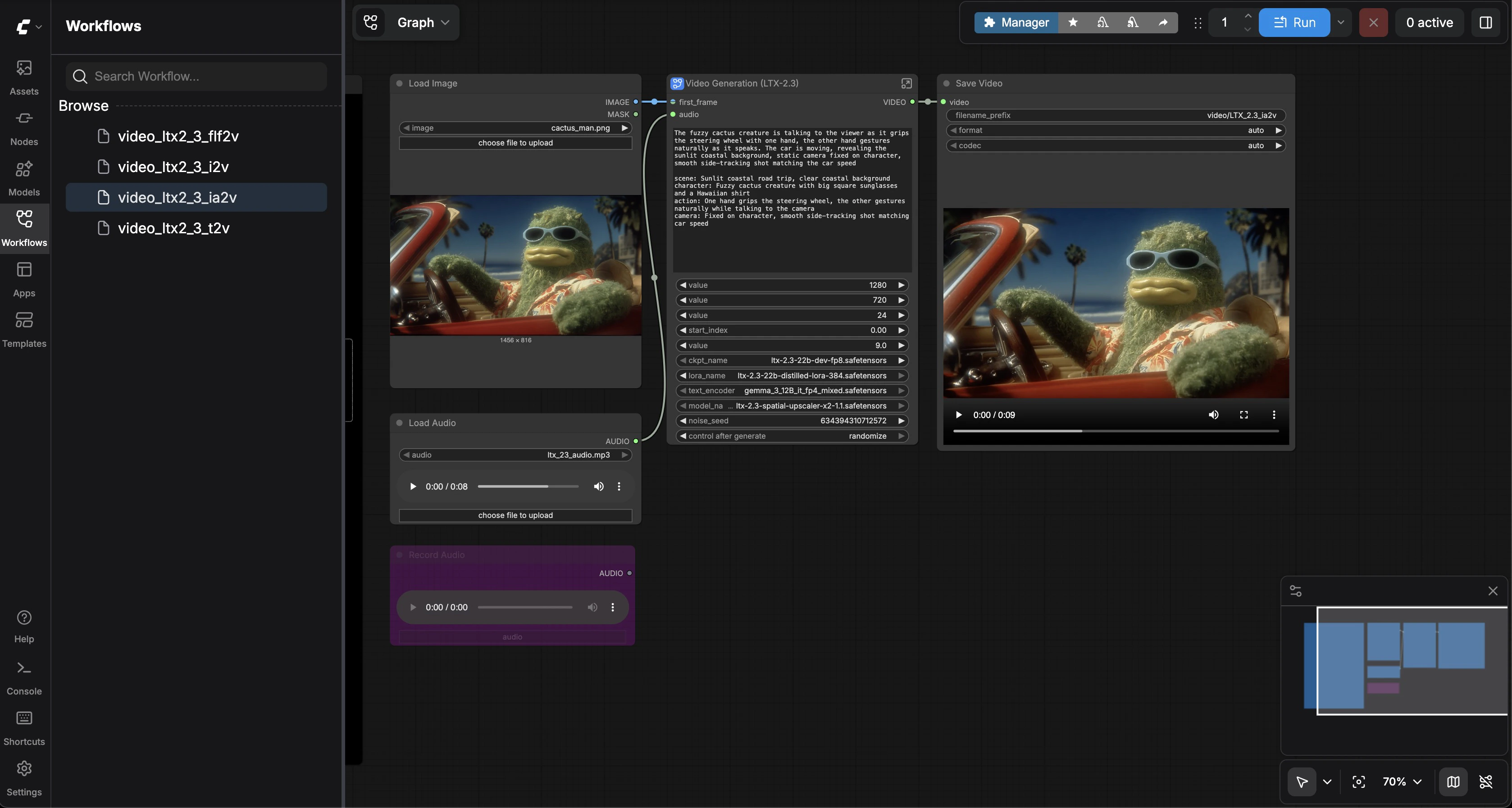
First & Last Frame Interpolation
Select video_ltx2_3_flf2v. Load two images — a first frame and a last frame (sample car images are included). Enter a prompt describing the transition. Click Run. The model generates a smooth video interpolation between your two keyframes.